
Wrap Learn
Using Wrap: step-by-step guides
Short, checked guides to the everyday jobs in Wrap: tracking time, setting up clients, projects and budgets, and getting reports out. Each guide lists who can do it, the steps, and the limits worth knowing.
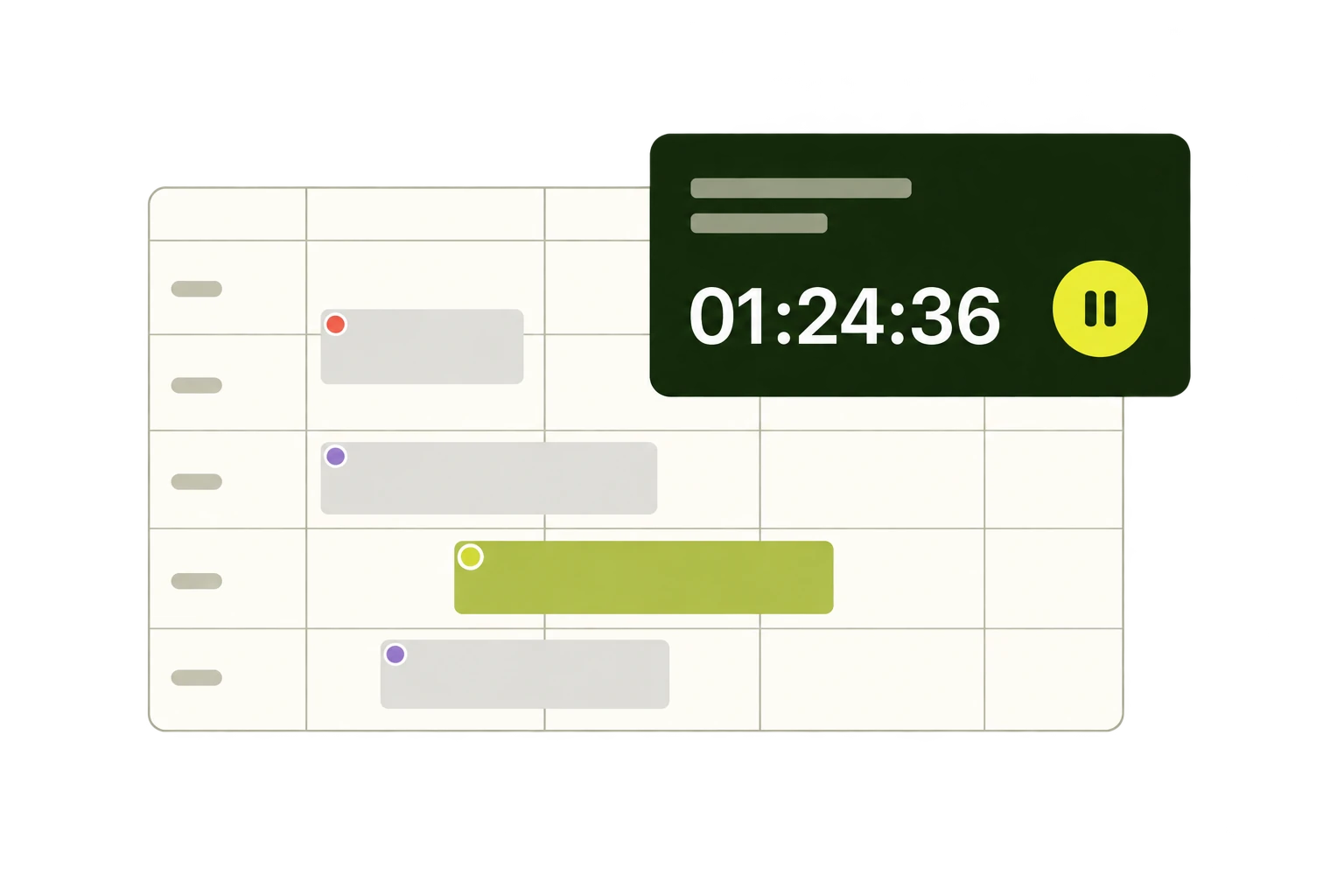
Track your time
- How to start and stop a timerTrack work as it happens, with a project or phase attached to the entry.
- How to add time manuallyRecord work you have already completed using a date, start time and duration.
- How to correct a time entryFix a saved entry’s duration, description or project directly in Tracker.
- How to fill a weekly timesheetEnter daily totals in the weekly grid and review time by project or phase.
- How to wrap up your dayUse the daily wrap to record pace, allocate the day and capture its main outcome.
Set up clients, projects and rates
- How to create a clientAdd a client name and short code so projects and phases stay organized.
- How to create a projectCreate a client engagement or internal bucket and set its default billing and visibility.
- How to create a phase and set its budgetAdd a statement-of-work phase with dates, billing model, budget and alert thresholds.
- How to set a team member’s cost rateAdd an effective-dated hourly cost rate for internal project-cost reporting.
Report and export
- How to filter a time reportNarrow the Summary report to a date range, client, project or billable status.
- How to export time entries to CSVExport time entries from the Detailed report using your chosen date range and filters.
- How to review team workload signals with PulseRead daily-wrap completion, reported pace and work-type patterns across the team.
How these guides were checked
Each guide was checked against Wrap on . Screenshots come from a demonstration workspace, so names, rates and totals are sample data. What you can see and change depends on your role and your organization’s settings.
Put the answers to work
on tomorrow’s timesheet.
Try Wrap with your own team. Free for up to 10 active members.