
Using Wrap · Report and export
How to export time entries to CSV in Wrap
Export time entries from the Detailed report using your chosen date range and filters.
Before you start
- Who can do this
- Any active member within their reporting access
- You need
- Completed entries in the chosen period.
Steps
- 01
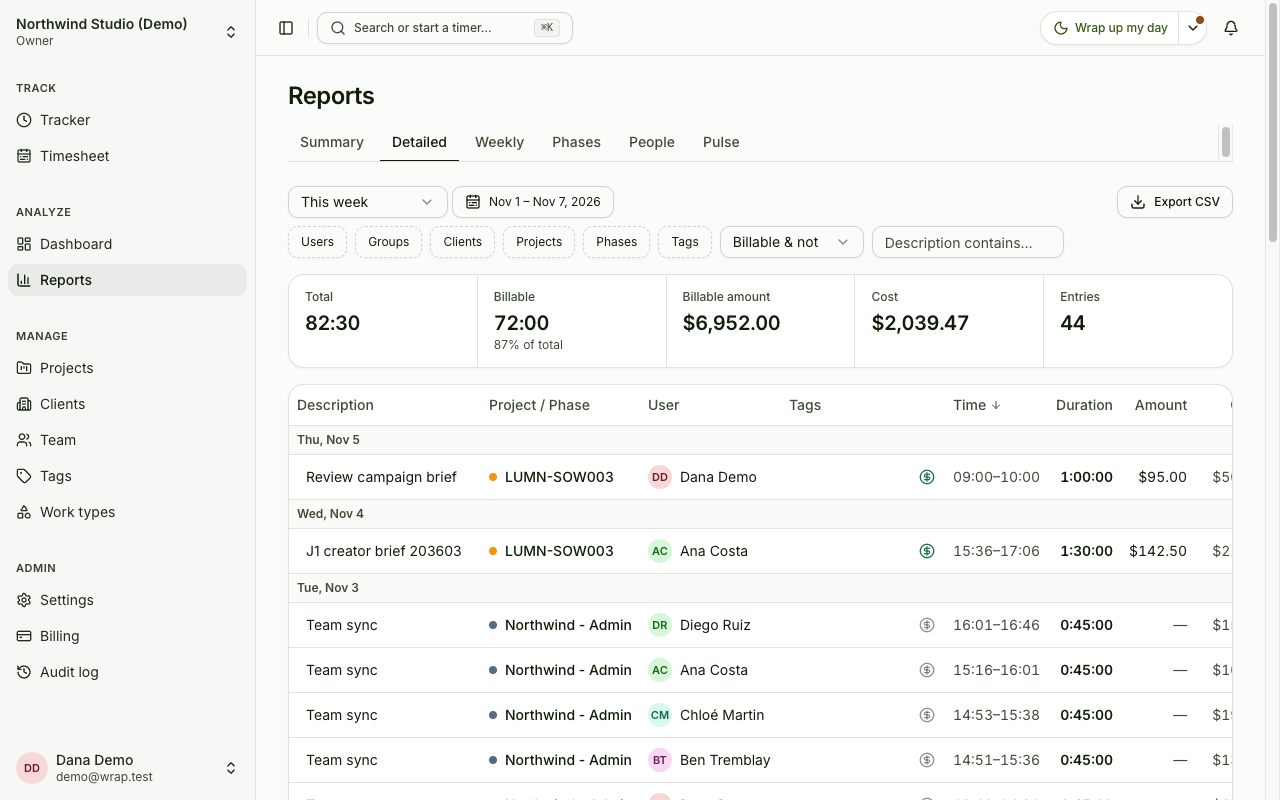
Open Detailed
Choose Reports, then Detailed to export individual entries.
- 02
Choose dates and filters
Select the date range and narrow the report by the appropriate users, client, project, phase, tags or billing status.
- 03
Check the rows
Review the visible entries and totals before exporting. Sort the table if you need a particular order.
- 04
Download the file
Click Export CSV. The filename includes wrap-detailed and the start and end dates.
- 05
Review the CSV
Open the file in your spreadsheet tool. Check the Date, User, Project, Phase, Description and Hours columns against the intended selection.
What you should see
A CSV contains detailed entry rows for the selected scope.
Good to know
- The current Detailed export requests at most 10,000 rows. Split large exports into smaller date ranges.
- Cost columns are included only for roles allowed to see costs.
- CSV export provides data; it does not send an invoice or sync a billing system.
Keep going
Put the answers to work
on tomorrow’s timesheet.
Try Wrap with your own team. Free for up to 10 active members.