
Using Wrap · Report and export
How to filter a time report in Wrap
Narrow the Summary report to a date range, client, project or billable status.
Before you start
- Who can do this
- Any active member; visible data depends on role
- You need
- Completed time entries in the desired period.
Steps
- 01
Open the Summary report
Choose Reports, then Summary.
- 02
Set the period
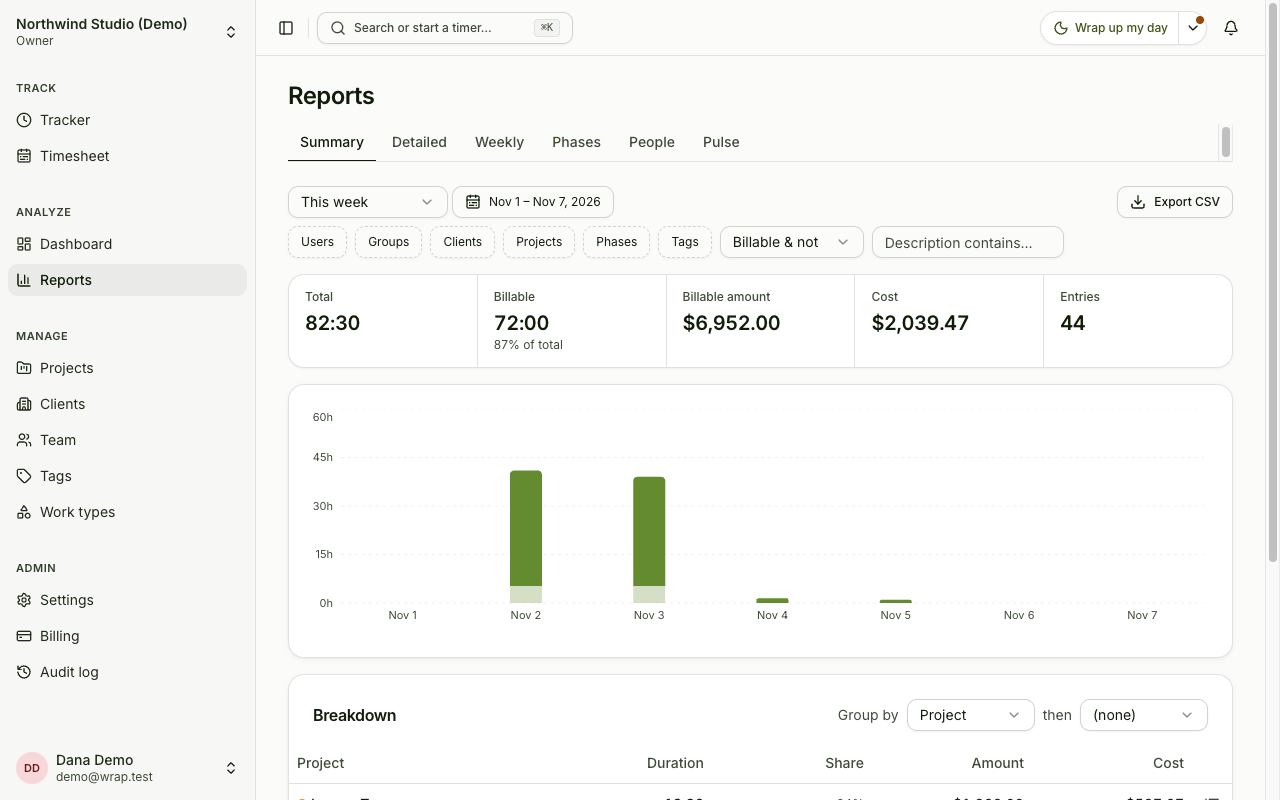
Use Date range for a preset or click the dates, select a custom range and Apply.
- 03
Apply filters
Choose Clients, Projects, Phases or Tags. Billable & not lets you choose Billable only or Non-billable only. Description contains filters entry descriptions.
- 04
Choose a breakdown
Use Group by and then to organize the breakdown. Review Total, Billable and the matching breakdown rows.
- 05
Reset when needed
Use Clear filters to remove active filters before running a different comparison.
What you should see
Totals and the breakdown reflect the selected date range and filters.
Good to know
- Members see their own time. Managers and admins have Users and Groups filters within their permitted scope.
- Cost visibility depends on role and the organization’s manager cost setting.
- The chart and report require completed time entries; an active timer is not a finalized entry.
Keep going
Put the answers to work
on tomorrow’s timesheet.
Try Wrap with your own team. Free for up to 10 active members.