
Using Wrap · Report and export
How to review team workload signals with Pulse in Wrap
Read daily-wrap completion, reported pace and work-type patterns across the team.
Before you start
- Who can do this
- Owner or Admin
- You need
- Daily wraps submitted by team members in the selected period.
Steps
- 01
Open Pulse
Choose Reports, then Pulse.
- 02
Set the period and team scope
Select a date range. Use Users or Groups to focus the report.
- 03
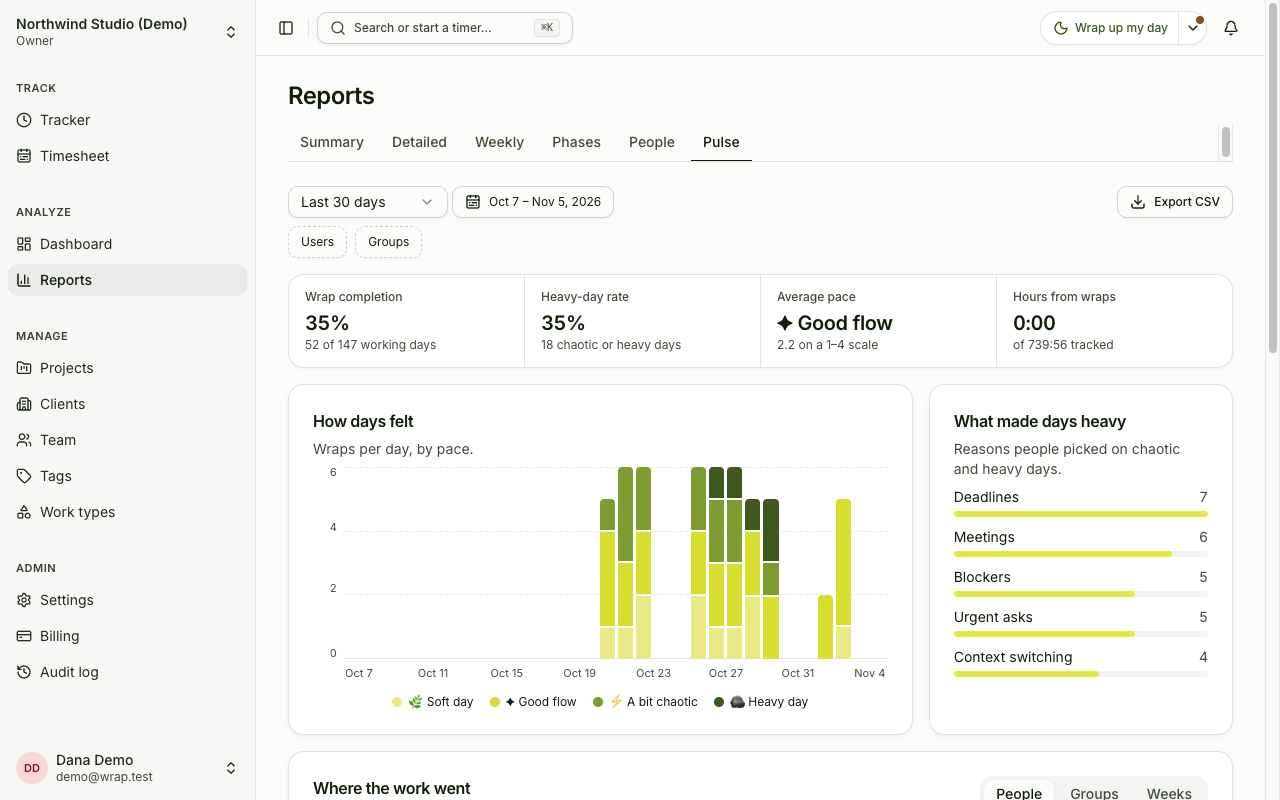
Read the headline signals
Review Wrap completion, Heavy-day rate, Average pace and Hours from wraps. The labels distinguish wrap-generated hours from total tracked time.
- 04
Explore patterns
Use How days felt and What made days heavy to see the reported pace mix and chosen reasons. Under Where the work went, switch between People, Groups and Weeks.
- 05
Read a person’s context
In the People table, open a person to read their daily wraps. Use Export CSV if you need the report’s person-level summary.
What you should see
You can connect aggregate patterns to the daily-wrap context behind them.
Good to know
- Pulse is restricted to Owner/Admin; managers do not receive access merely by managing a group.
- Heavy-day rate includes A bit chaotic and Heavy day.
- Pace is self-reported, so treat it as context for discussion rather than a productivity score.
- Work-type figures come from wrap allocations and can differ from project-level tracked hours.
Keep going
Put the answers to work
on tomorrow’s timesheet.
Try Wrap with your own team. Free for up to 10 active members.