
Using Wrap · Track your time
How to add time manually in Wrap
Record work you have already completed using a date, start time and duration.
Before you start
- Who can do this
- Any active member
- You need
- An accessible project or phase.
- The date and duration of the completed work.
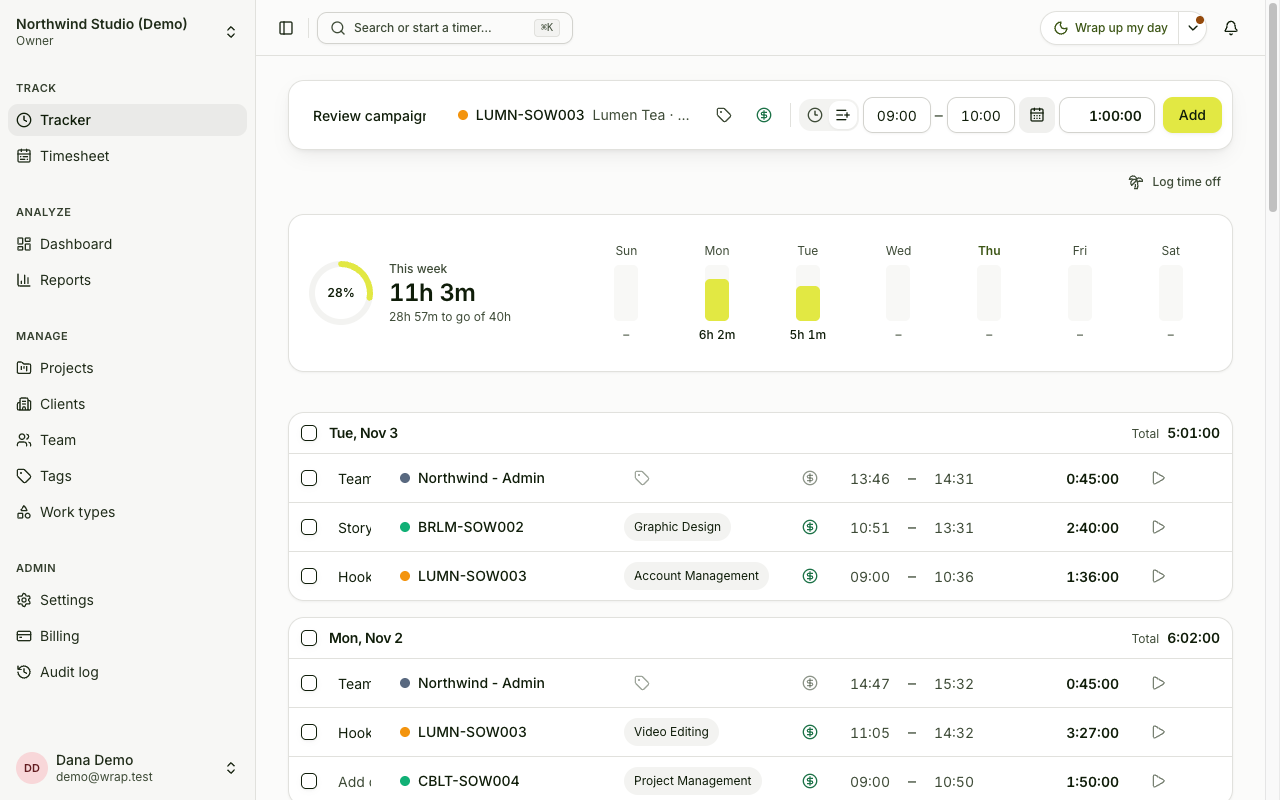
Steps
- 01
Switch to manual mode
Open Tracker and select Manual mode beside the timer controls.
- 02
Describe and categorize the entry
Enter the work description, choose a Project or phase, and review tags and the Billable toggle.
- 03
Set the time and date
Set Start time and End time. Use the calendar button labelled Entry date for a different day. You can also edit Manual duration; 1:30 represents one hour and thirty minutes.
- 04
Add the entry
Click Add. Check that the new row appears on the intended day.
- 05
Check your weekly total
Open Timesheet to confirm the hours appear against the same project or phase and date.
What you should see
The saved entry contributes to the day and week totals.
Good to know
- Times are interpreted in the organization’s timezone.
- An end time at or before the start time is treated as crossing midnight; check the resulting duration.
- Required project, description or tag rules still apply.
Keep going
Put the answers to work
on tomorrow’s timesheet.
Try Wrap with your own team. Free for up to 10 active members.