
Using Wrap · Track your time
How to fill a weekly timesheet in Wrap
Enter daily totals in the weekly grid and review time by project or phase.
Before you start
- Who can do this
- Any active member
- You need
- Access to the projects or phases you need to fill.
Steps
- 01
Open the right week
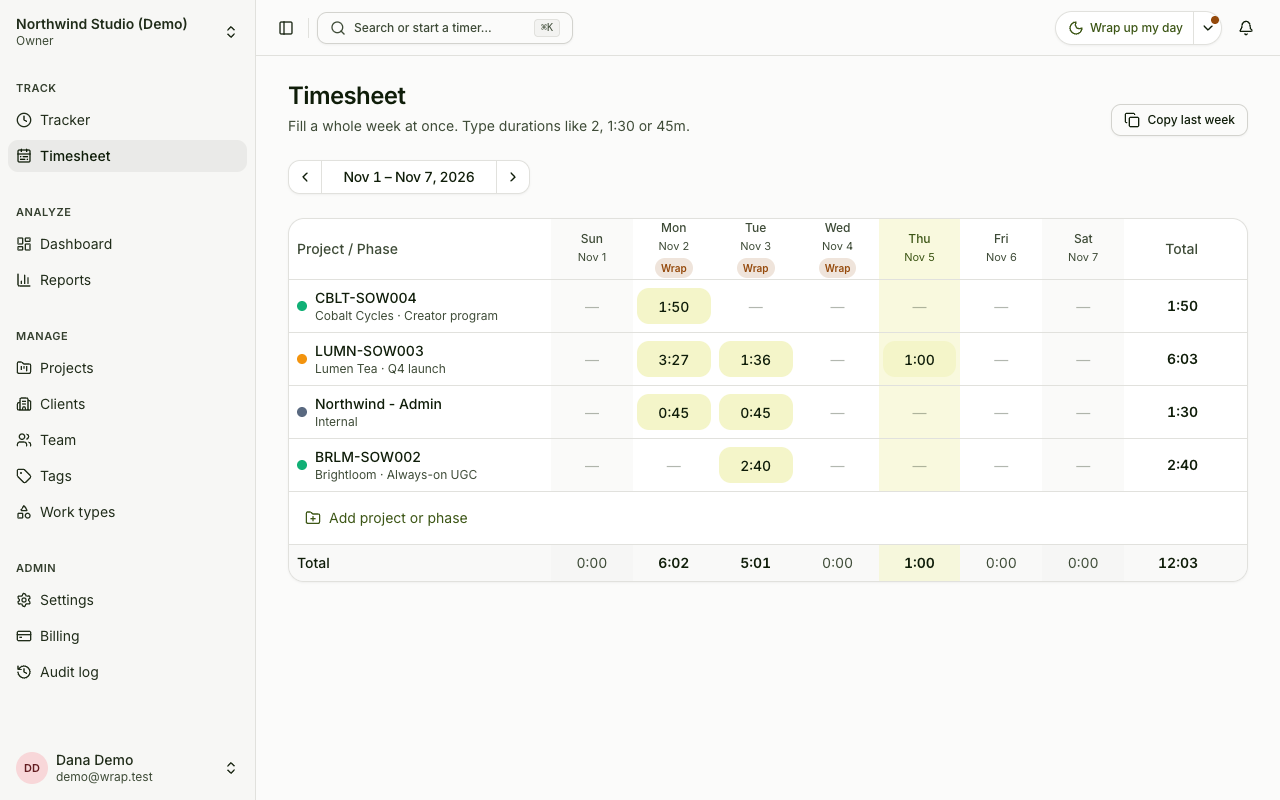
Choose Timesheet. Use Previous week and Next week to select the period; This week returns to the current week.
- 02
Add project rows
Click Add project or phase and choose a target. Copy last week adds missing project rows from the previous week.
- 03
Enter a daily total
Select the cell for the project and day. Type a duration such as 2, 1:30 or 45m, then press Enter or leave the cell.
- 04
Review the totals
Check the Total row, each project’s weekly total and the overall total. Open Tracker when you need to inspect individual entries behind a cell.
What you should see
The weekly grid stores the intended daily total and updates its totals.
Good to know
- Copy last week copies rows, not hours.
- A cell value is the desired total, not additional hours. Clearing a populated cell or entering 0 deletes its entries.
- When a reduction would eliminate the last of several entries, Wrap asks you to shorten entries in Tracker.
- Locked days are unavailable to non-admin members.
Keep going
Put the answers to work
on tomorrow’s timesheet.
Try Wrap with your own team. Free for up to 10 active members.