
Using Wrap · Track your time
How to correct a time entry in Wrap
Fix a saved entry’s duration, description or project directly in Tracker.
Before you start
- Who can do this
- Any active member editing their own unlocked entries
- You need
- A completed entry in Tracker.
Steps
- 01
Find the entry
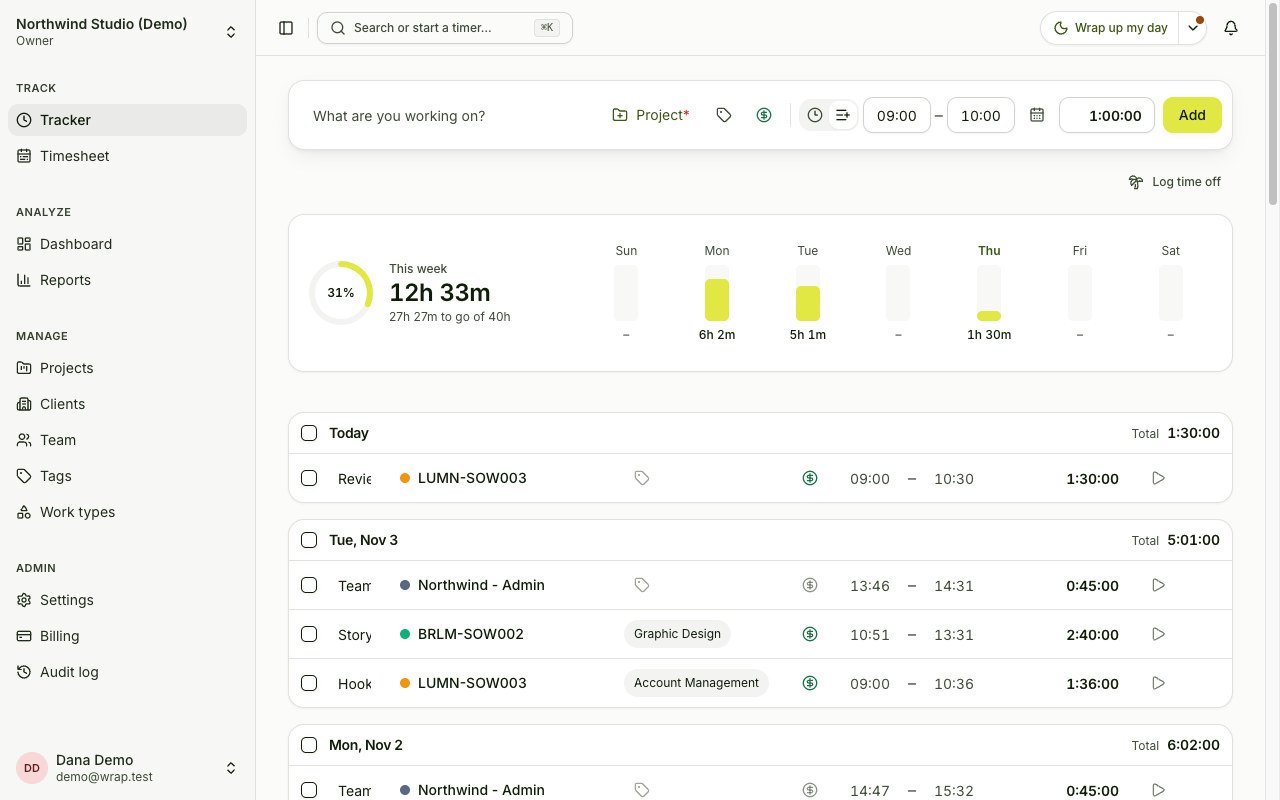
Open Tracker and locate the entry under its day. Use Load older entries if the date is outside the currently loaded list.
- 02
Correct the duration
Select the duration at the right of the row and type the total you intended, such as 1:30 or 90m.
- 03
Save the field
Press Enter or move focus away. Wrap keeps the start time and adjusts the end time to match the new duration.
- 04
Review the details
Check Start time, End time and the day total. Description, project, tags and billable status are editable in the same row.
- 05
Check for overlap
If an overlap warning appears, compare the corrected entry with nearby entries and adjust the actual times.
What you should see
The entry and day total reflect the corrected duration.
Good to know
- Organization lock dates can prevent changes to older entries.
- Invalid duration text returns to the saved value. Make sure the new value persisted before leaving.
- Editing a duration changes the end time, so it can overlap another entry.
Keep going
Put the answers to work
on tomorrow’s timesheet.
Try Wrap with your own team. Free for up to 10 active members.