
Features · Wrap
Time tracking summary reports
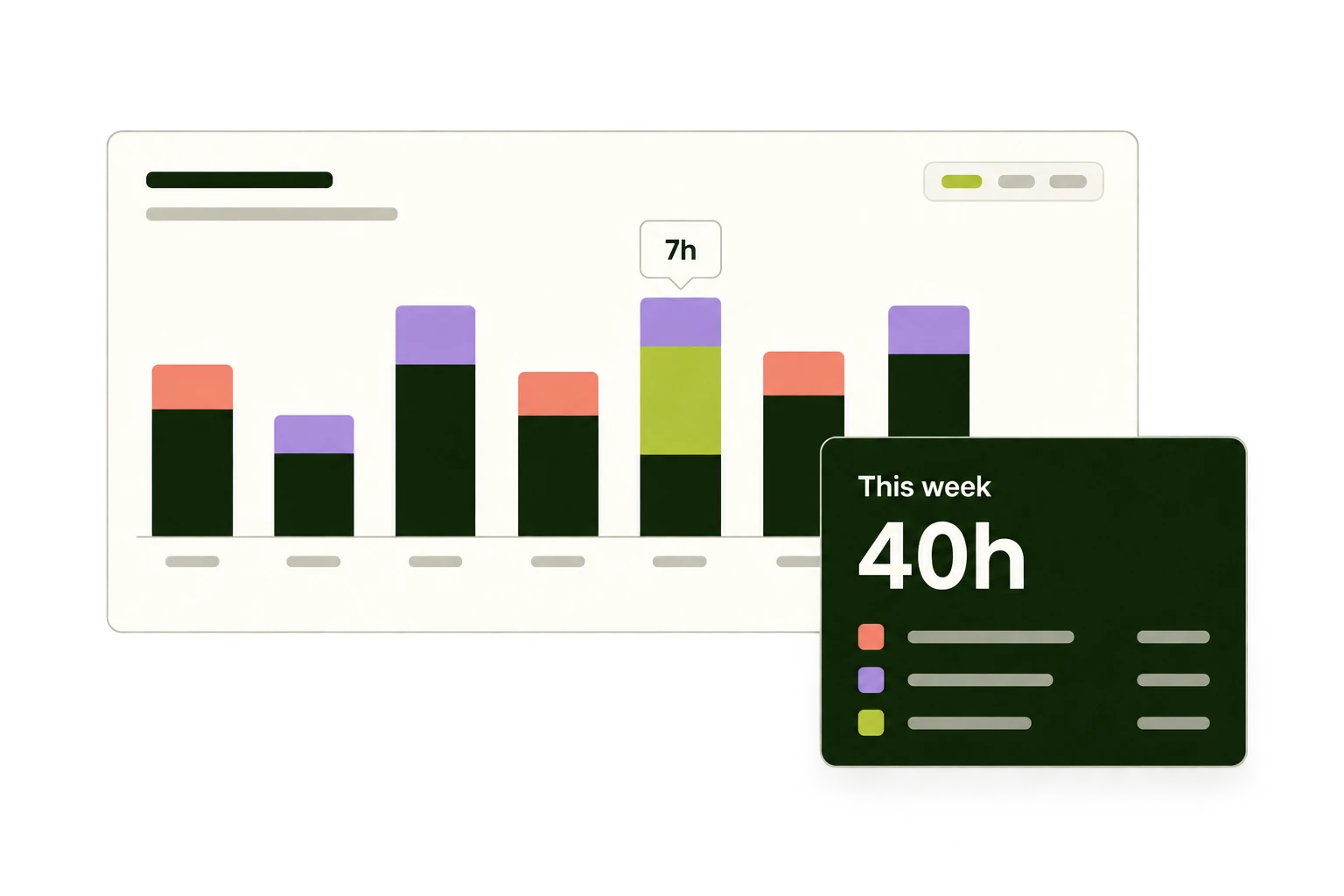
Summary reports group recorded time so reviewers can understand a client, project or team over a selected period. Wrap supports filters and drill-downs that connect the overview to more specific work.
Summary reports
How it works: summary reports
- 01
Choose a reporting period that matches the decision you need to make.
- 02
Filter and group the time by the relevant client, project or person.
- 03
Drill into a surprising total before drawing a conclusion from it.
Summary reports: a worked example
An account lead reviews a month by client, then opens the busiest client’s projects. The next step is to understand which phase consumed the extra effort.
Use the example to check the meaning of the record before applying it to your own company. The figures are illustrative, and the actual result depends on the entries, settings and reporting period you choose.
- First view
- Month by client
- Next question
- Which project grew?
- Follow-up
- Review its phase entries
When to use summary reports
Keep a consistent period and filter set when comparing reports. A week view and a calendar-month view can both be correct while showing very different totals.
See an agency workflowQuestions worth asking.
Can I get from the total to its entries?
Wrap provides drill-down and detailed-report paths so a reviewer can inspect the work behind an aggregate rather than relying on the headline alone.
How should we test this with our team?
Use a small, representative project and follow the steps above. Include a correction, a different user role and a report review. For summary reports, a useful pilot proves the record supports the decision described here; it is not just a tour of the interface.
Where can I check the rest of the product?
The feature overview shows how daily wrap, timers, manual entries, projects and reports fit together. Use the pricing page for the current plan terms and the product app to test your own workflow.
A clearer record starts
with one working day.
Try the workflow with your own team. Free for up to 10 active members.